
Grant an Award
An Award refers to a Reward granted to a Member, without the Member having to deduct any of their Metrics. An Award is essentially a "free" Reward, as opposed to a Redemption, which is a Reward that a Member earns and purchases with the appropriate number of Metrics.
From the Member Profile screen, a Customer Service Representative can grant an Award to a Member.
The platform supports two different methods of granting an Award from the Member Profile screen: from an option within the header, and from the Awards tab.
Grant an Award from the Header
To grant an Award using the option within the header area of the Member Profile screen:
-
Select Members from the top navigation bar, then select CSR > People from the side navigation menu. The People screen is displayed.
-
On the People screen, search for and select the desired Member (see
-
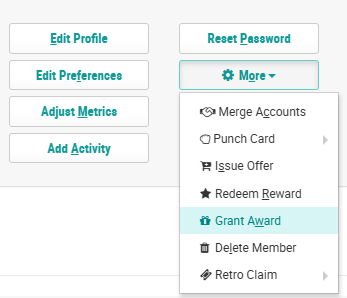
Within the header section of the screen, click More > Grant Award. The Edit Award pop-up window is displayed.
-
From the Reward drop-down menu, select the desired Reward.
-
Optionally, check Auto Claim Upon Award. If checked, the Award will automatically move to a status of Claimed.
-
Optionally, in the Reason text field, enter the reason for granting this Member the Award.
-
Select the desired Effectivity option:
-
Always: The Award is always available and does not expire.
-
Schedule: The Award is available only within a certain date range. Enter the start and end date / times, and select a time zone.
-
-
Click Save.
Grant an Award from the Awards Tab
To grant an Award from the Awards tab:
-
Select Members from the top navigation bar, then select CSR > People from the side navigation menu. The People screen is displayed.
-
On the People screen, search for and select the desired Member (see
-
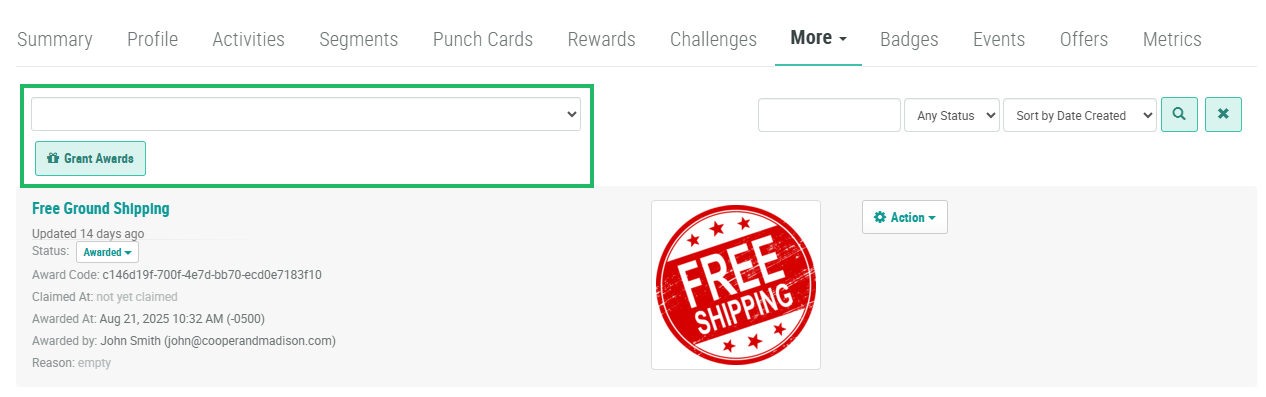
Select the Awards tab.
-
From the drop-down menu, select the desired Reward.
-
Click Grant Award. The Edit Award pop-up window is displayed.
-
The Reward drop-down menu is populated with the Reward you selected above; optionally, select a different Reward.
-
Optionally, check Auto Claim Upon Award. If checked, the Award will automatically move to a status of Claimed.
-
Optionally, in the Reason text field, enter the reason for granting this Member the Award.
-
Select the desired Effectivity option:
-
Always: The Award is always available and does not expire.
-
Schedule: The Award is available only within a certain date range. Enter the start and end date / times, and select a time zone.
-
-
Click Save.
